Skip to Main Content

Cropper Image Editing Tool

Cropper is an in-browser tool that crops, resizes, and converts images without opening Figma or Photoshop. Built for day-to-day image prep that can eat up time, it started as a personal utility and turned into something I now reach for on almost every project.

The Problem

At my employer, Jackrabbit, prepping images for a project is a constant, low-value task. Every project needs images cropped or resized, and exported into the right format. None of that technically requires the full weight of Figma or Photoshop, but both were the only tools available for it. Opening a design app just to crop a batch of images meant waiting on load times, hunting for the right export settings, and doing work that had nothing to do with design thinking. Then I thought...

“I want something fast and simple. What if I built a tool that did one job well?”

How it Started

The idea came out of a simple frustration: cropping shouldn't require a design app. Once I had the concept, I wanted a name that fit the Jackrabbit brand rather than a generic utility name, so I landed on Cropper, a mashup of Crop and Hopper that kept the rabbit theme without being cute about it.

From there, the build process was fast. I prompted Claude to work through the initial concept, then carried that into Claude Code with a markdown spec file laying out what the tool needed to do. That spec became the blueprint for the first working version.
Version 1

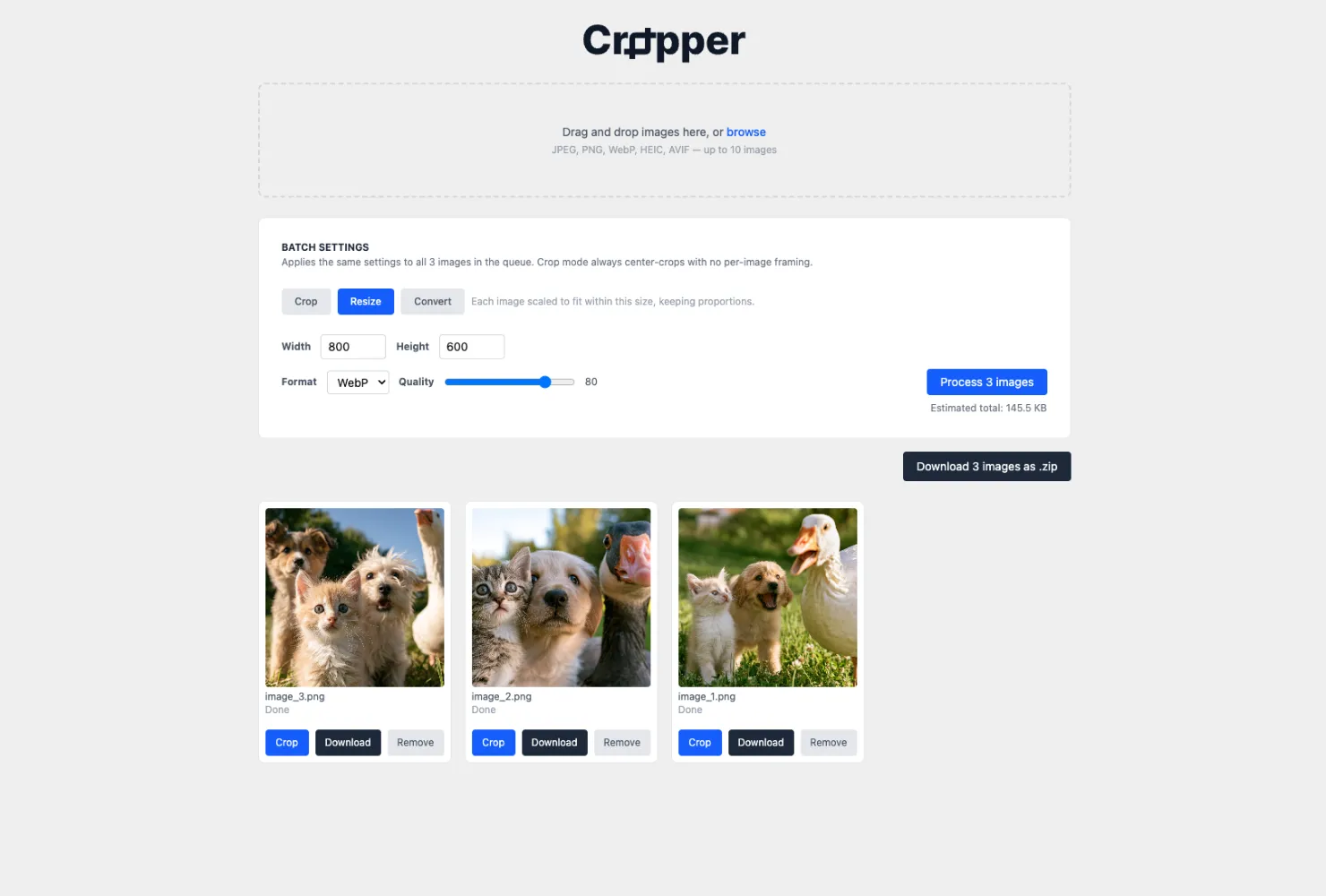
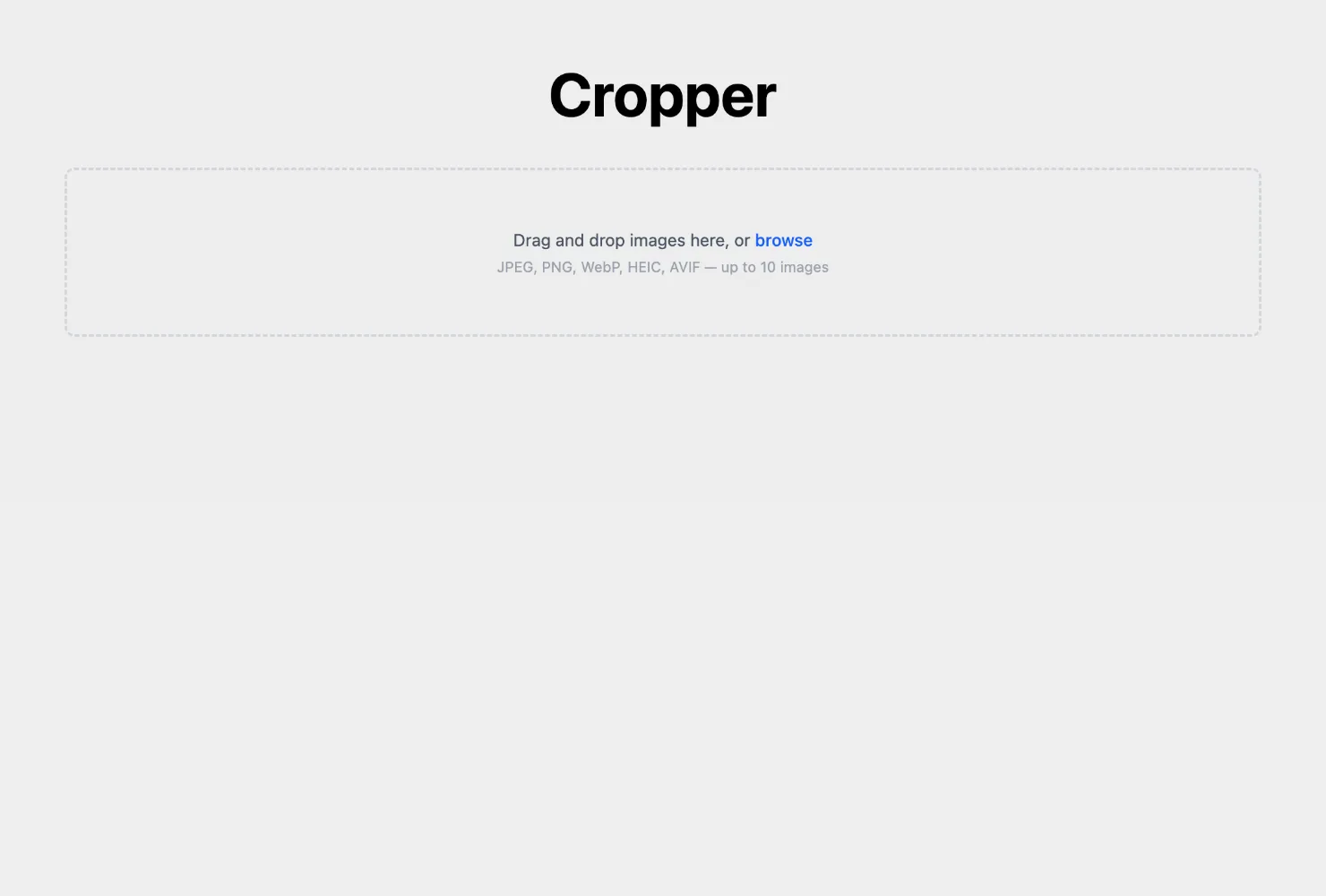
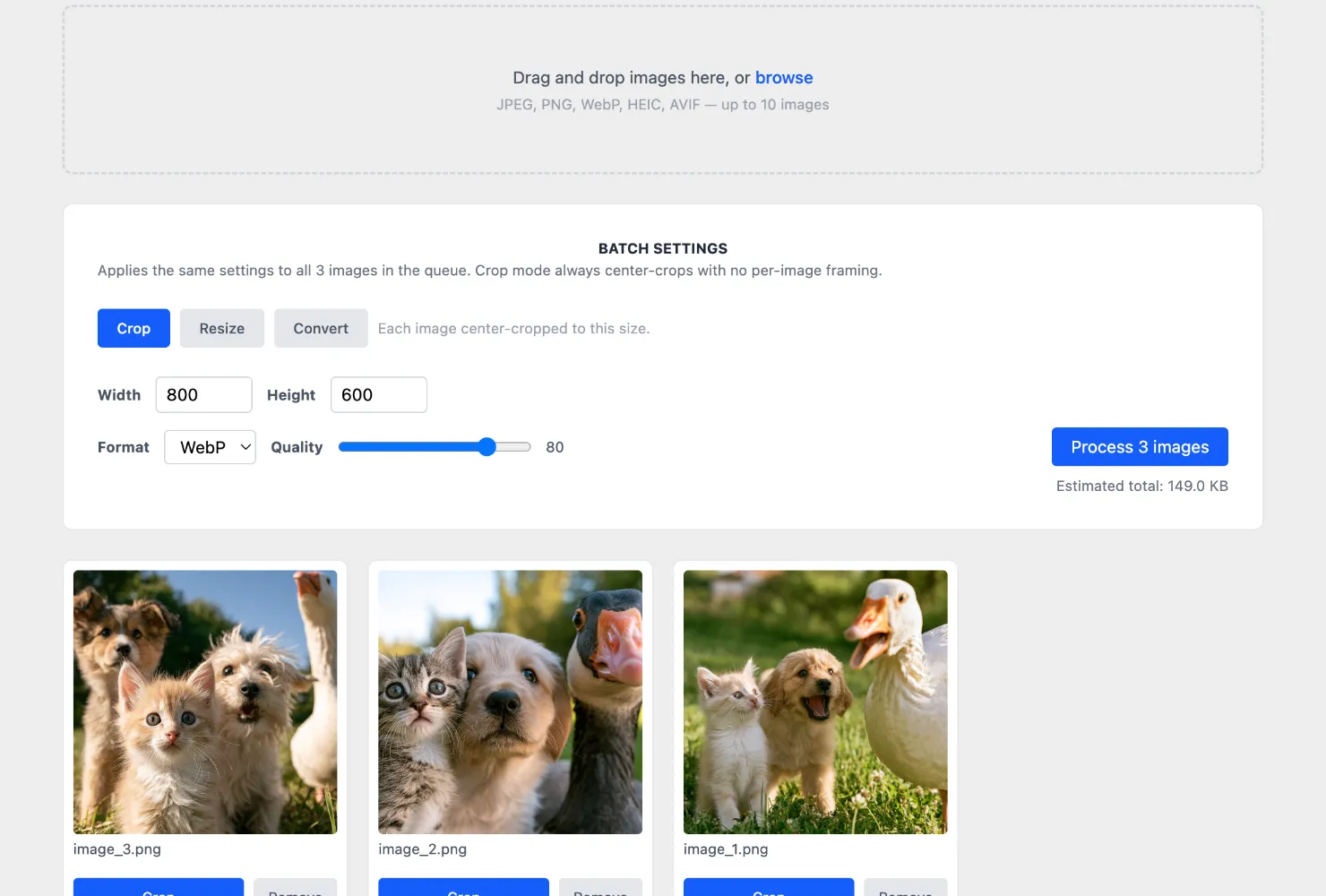
The first release handled the core job of cropping, resizing, and converting images either one at a time or in a batch, capped at ten files. It was rough, but it worked, and it was already faster than opening Photoshop for the same task.

I shared it around and received useful feedback. People wanted the file dimensions removed from the output, and they wanted filenames to be editable before export instead of locked to whatever they uploaded. Small improvements, and easy to incorporate.

Putting It to Work

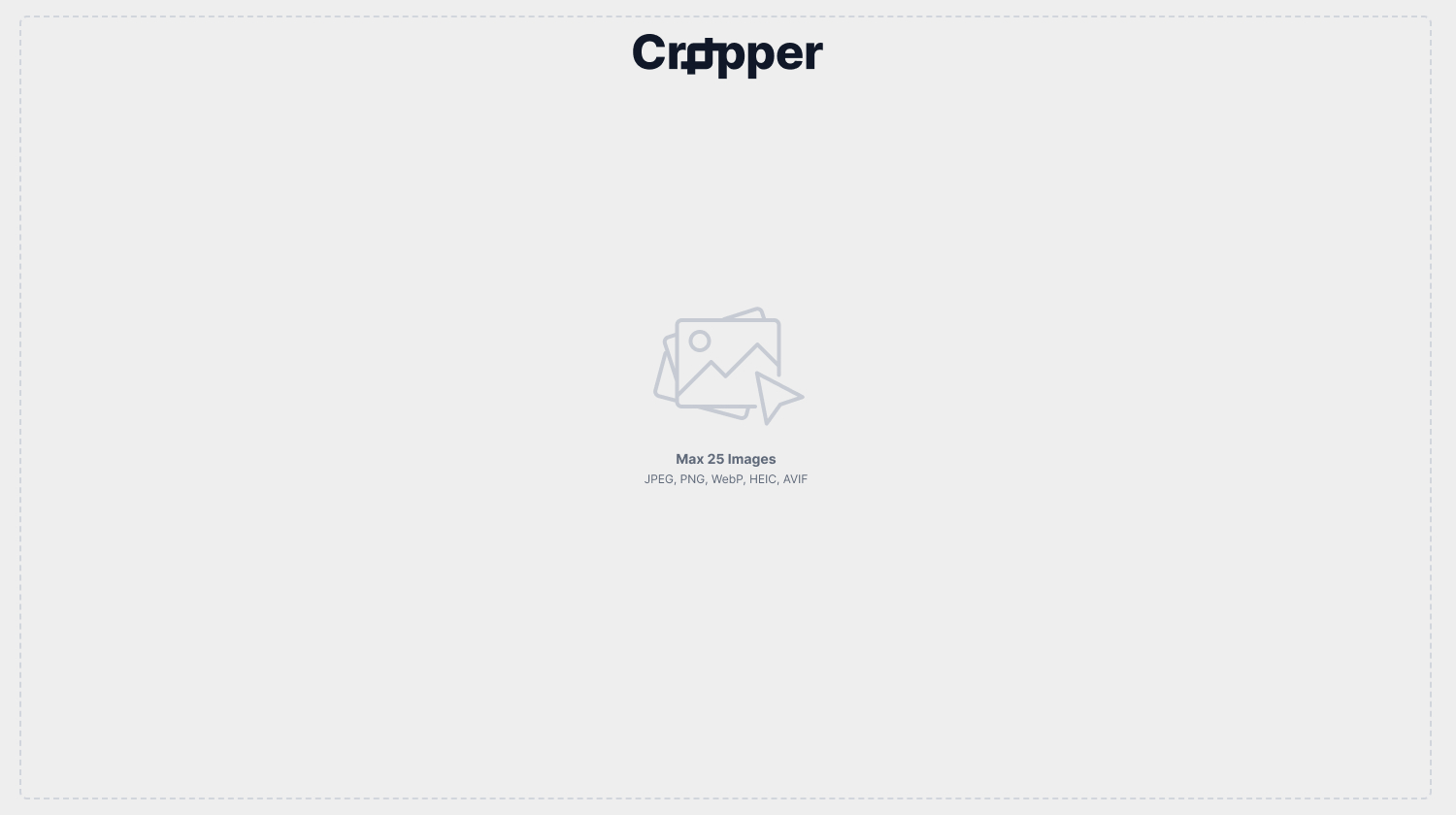
The real test came when I used Cropper heavily on a time-sensitive project. That's when the 10-image cap I added started to feel limiting. So, along with requested improvements, I bumped the limit to 25. That change made the tool usable for largwe projects. I don't want to add too high a limit because all processes are done in the browser, on a local device.

This was also the point where the time savings became obvious. What used to be several minutes of app-switching and manual exports one a time turned into a drag-and-drop and a few clicks. The computer resources added up too. No design app running in the background just to touch a handful of images.

Rebuilding the UX

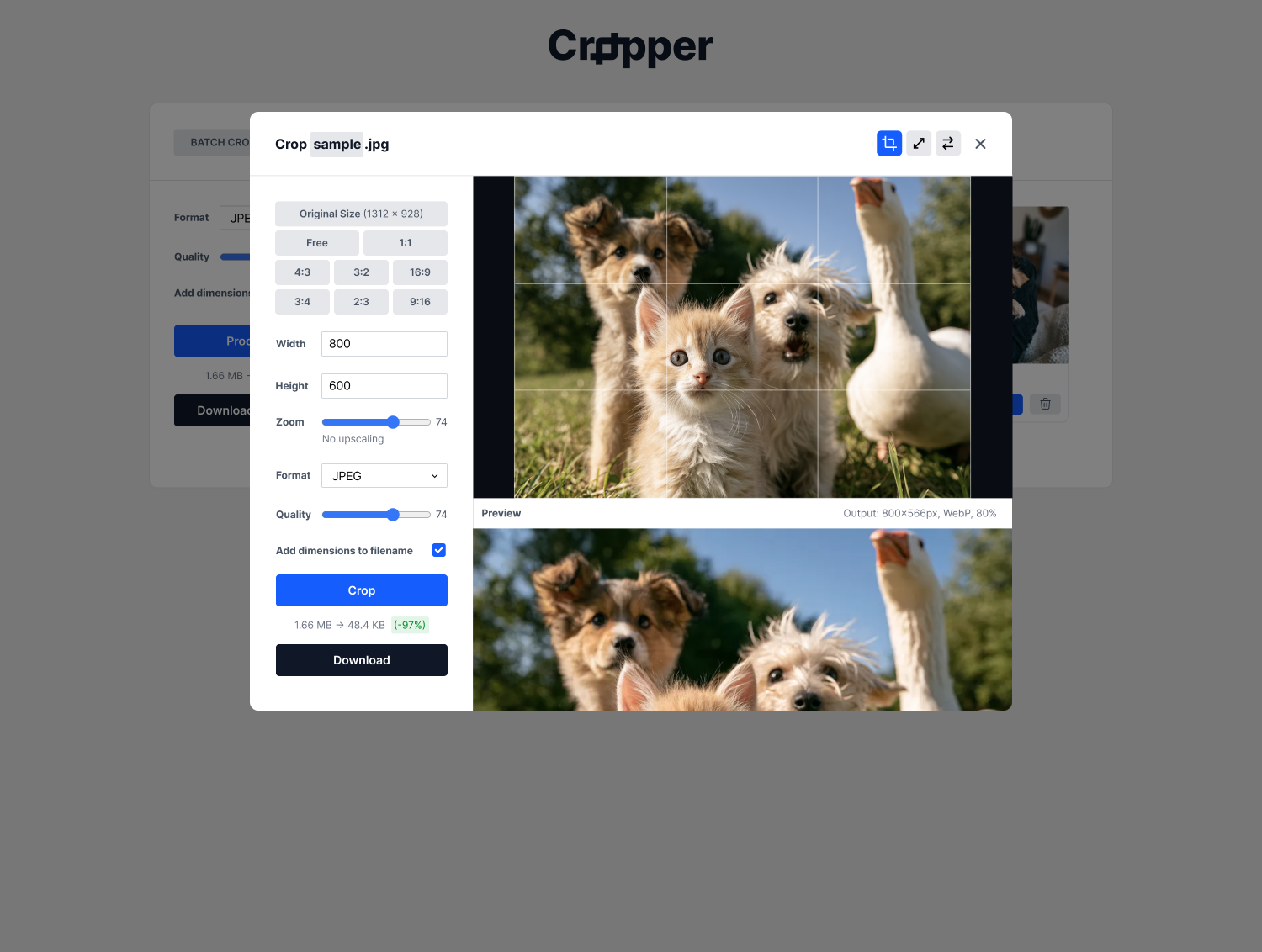
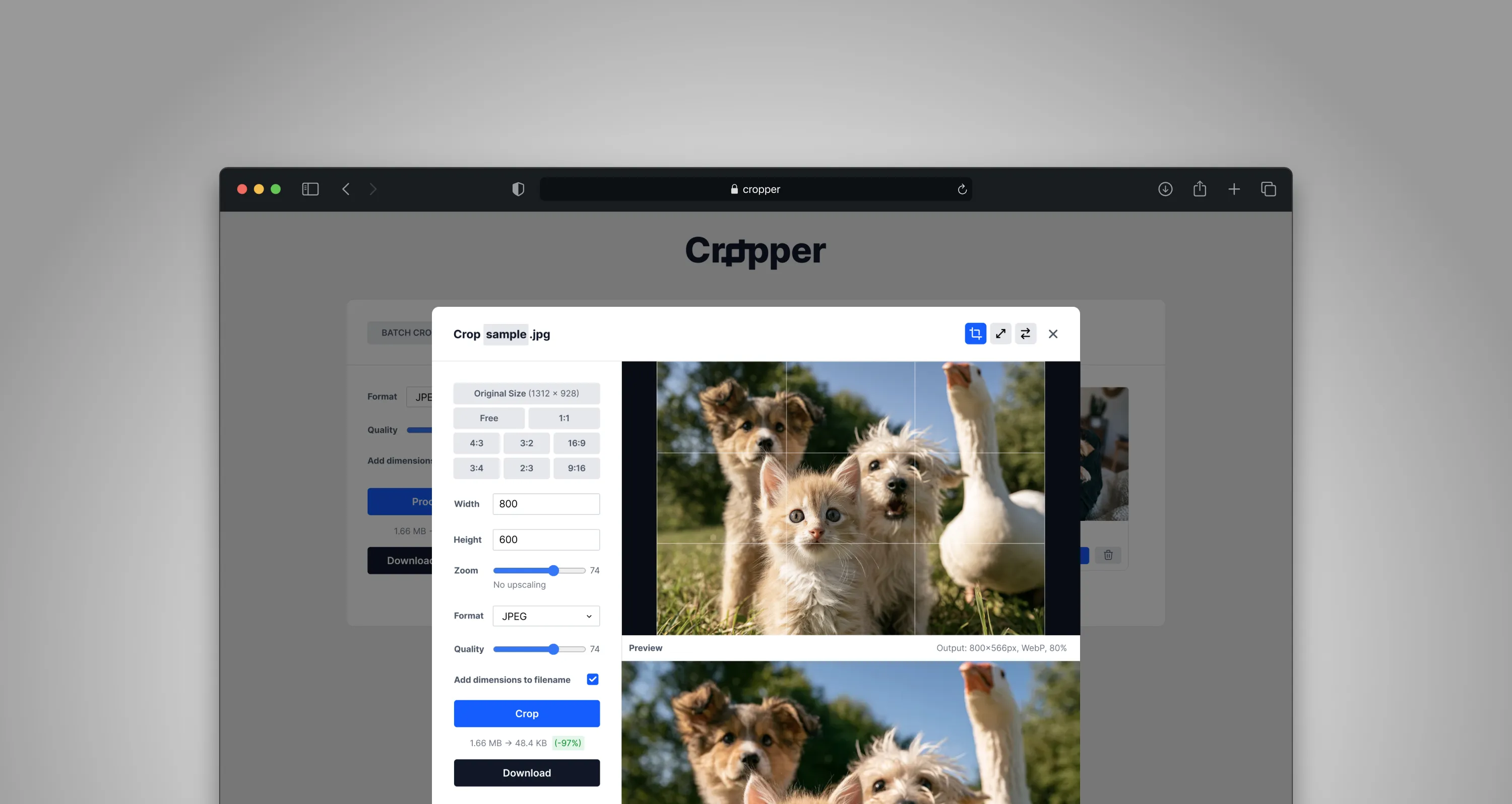
After multiple updates and improvements, I had a full working version I was satisfied with. It had:

  • Filename editing for cleaner exports
  • Locked aspect ratios so crops stayed consistent
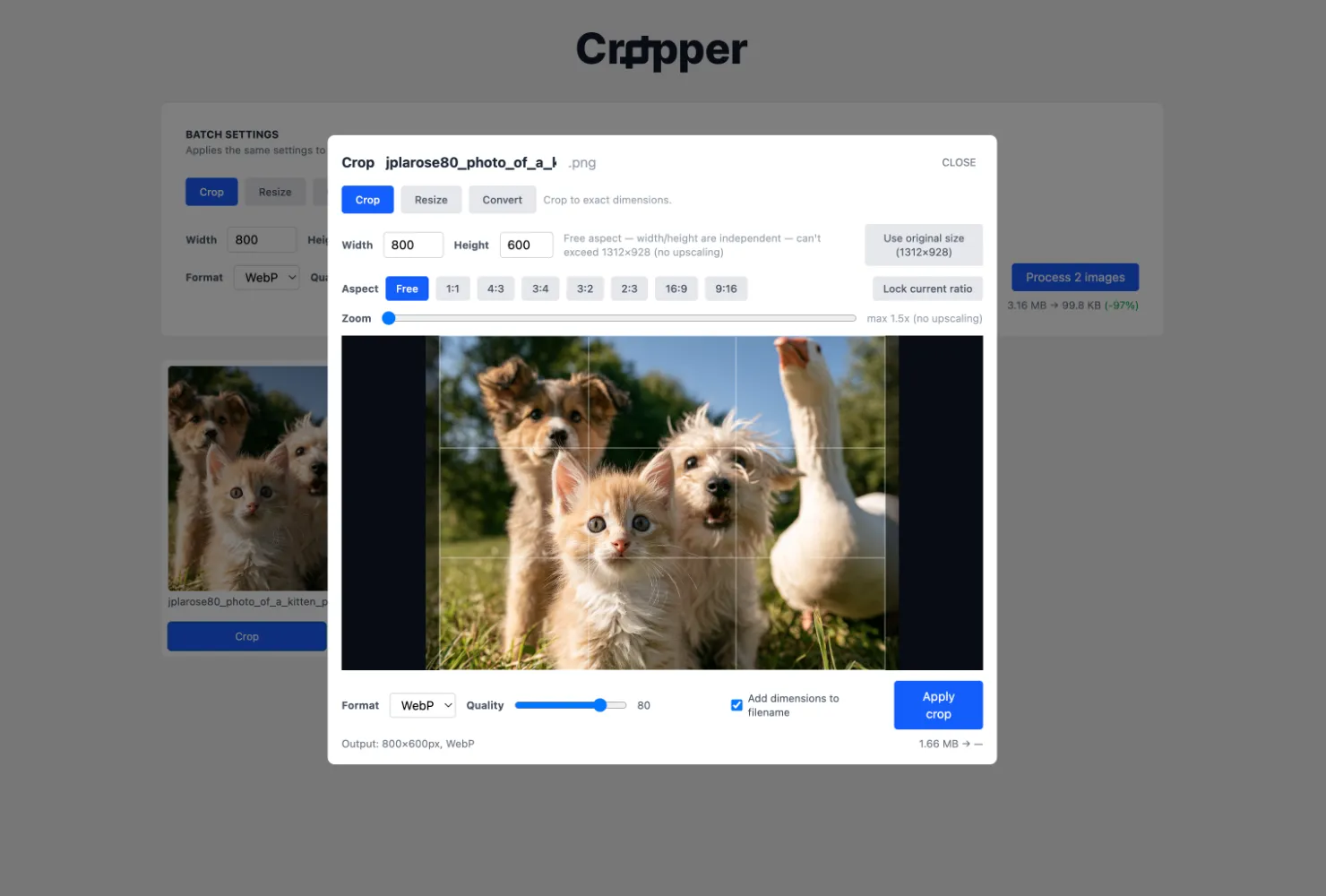
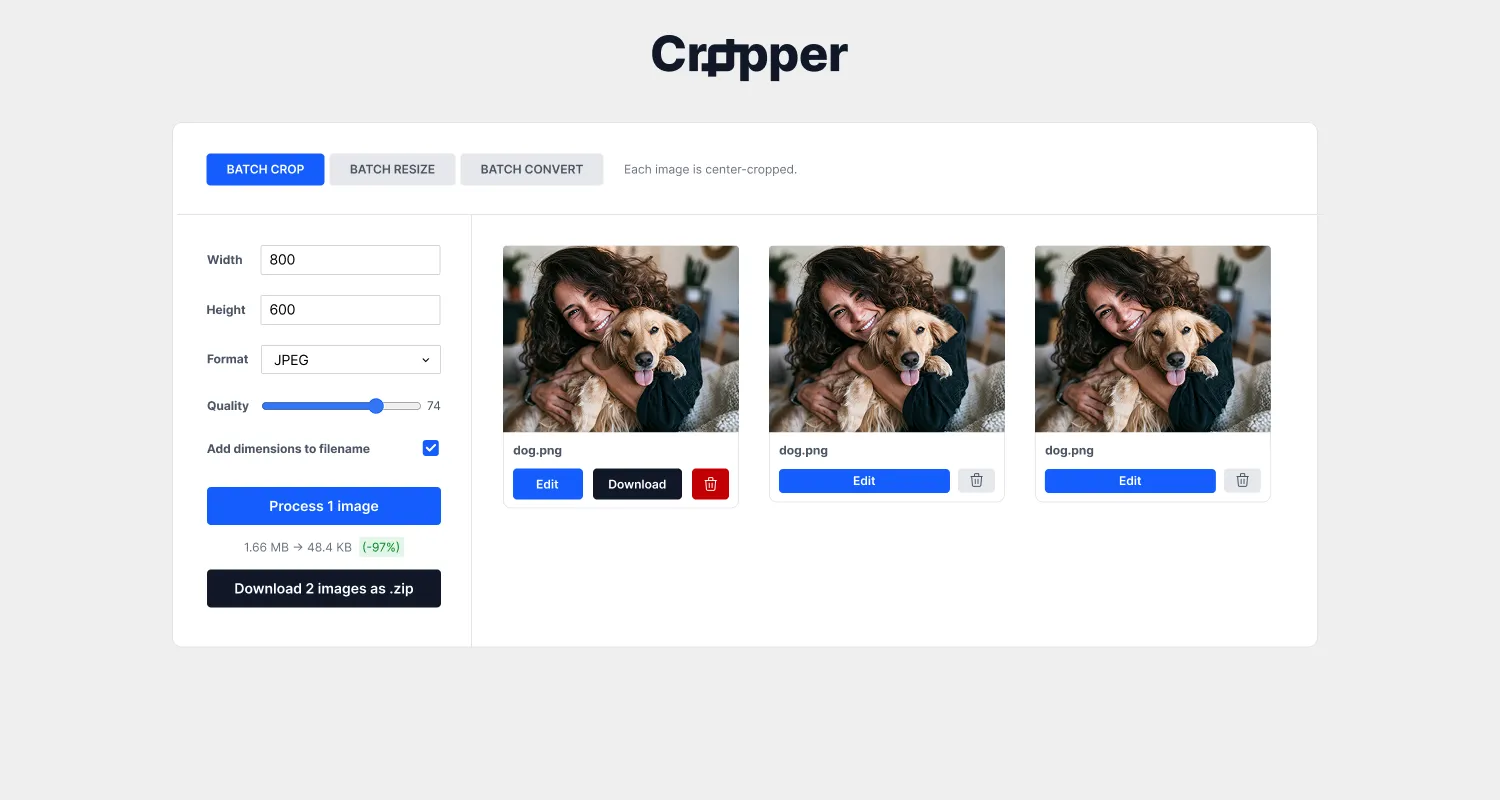
  • File size metrics so I could see savings as they happened
  • Drag-anywhere upload instead of a single drop zone
  • Escape to cancel and close popups
  • Icons in place of labels where the meaning was obvious

Version one was useful, but it had gotten cluttered as I added improvements. So I went back and redesigned it.

The Outcome

Cropper now handles a task that used to rely on heavy apps. It's become part of my actual workflow. It even cropped and converted some images in this case study. The project also doubled as a real test of building software with AI tools.